Appearance
Content Blocks
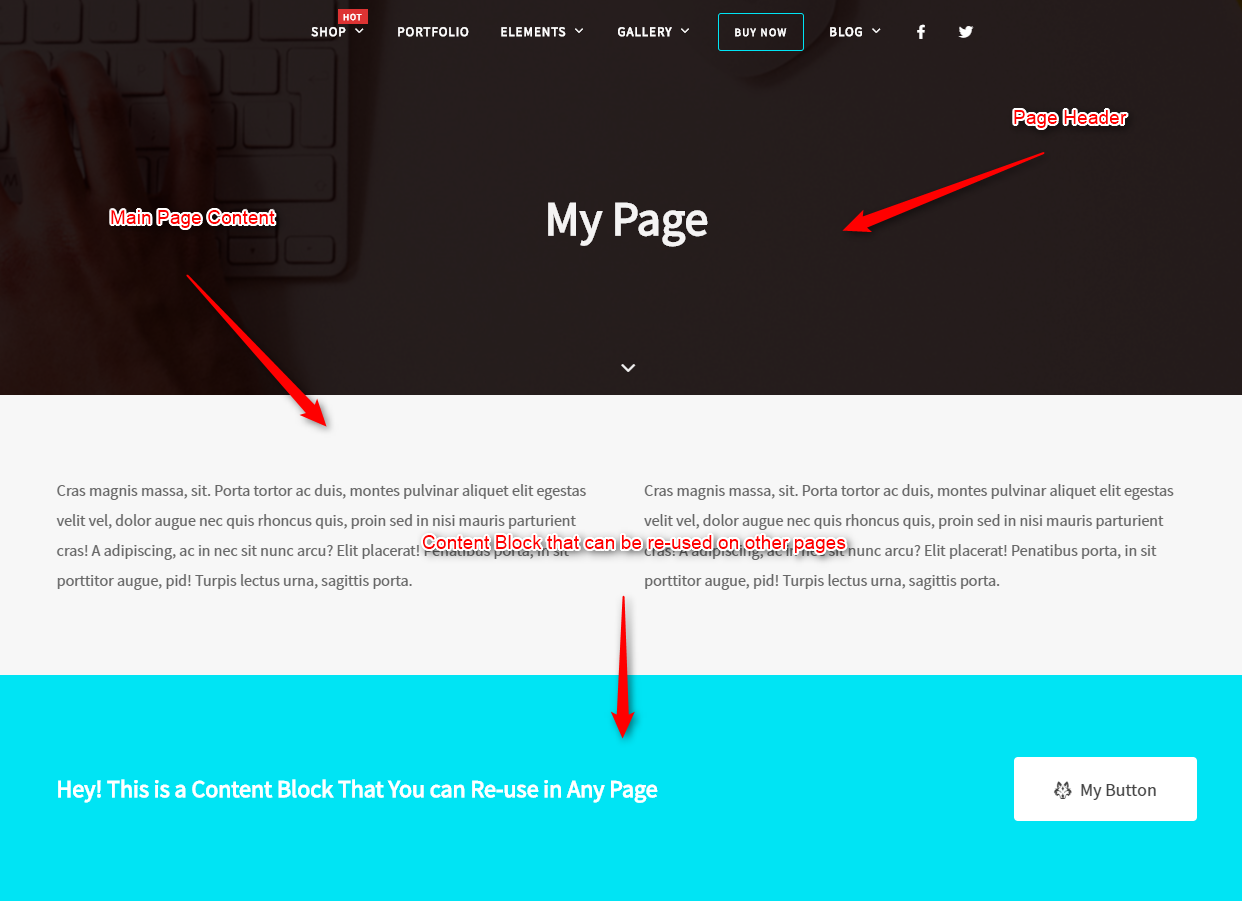
Our themes include a Content Blocks feature — a powerful system to create reusable content fragments that can be used as page sections, custom headers, or custom footers.
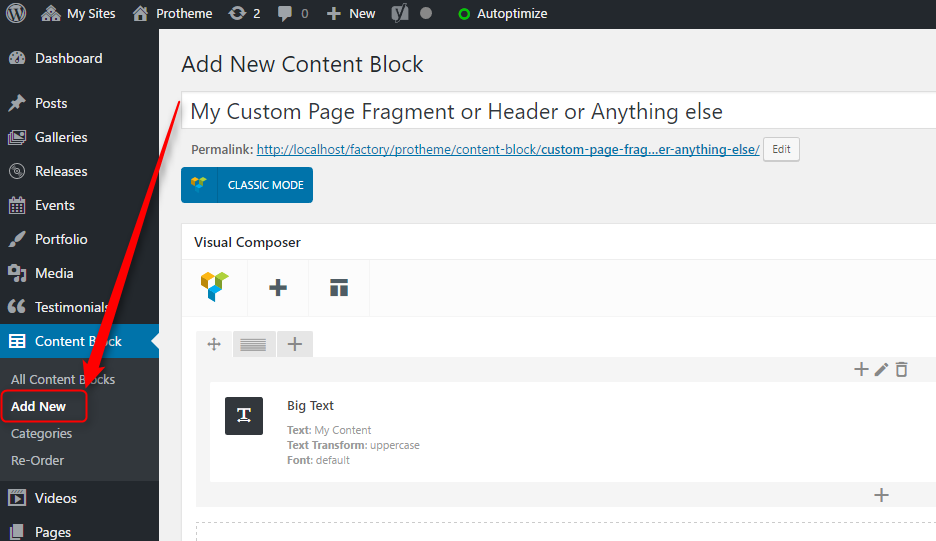
Creating a Content Block
Go to Content Blocks > Add New and build your block using WPBakery Page Builder, just like a regular page.
Using a Content Block in a Page
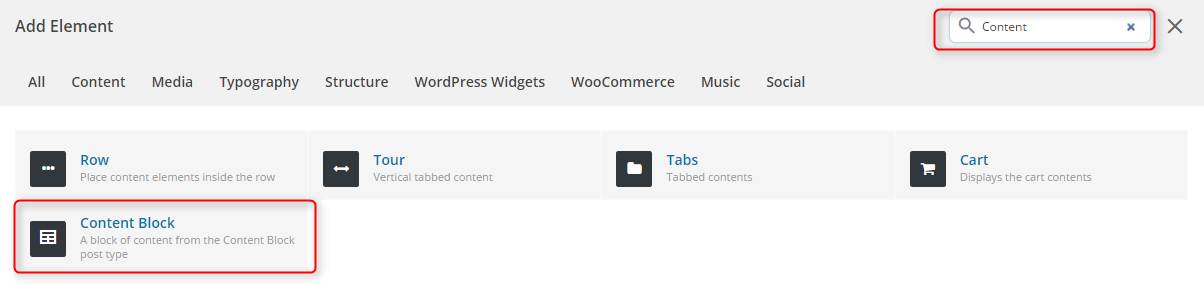
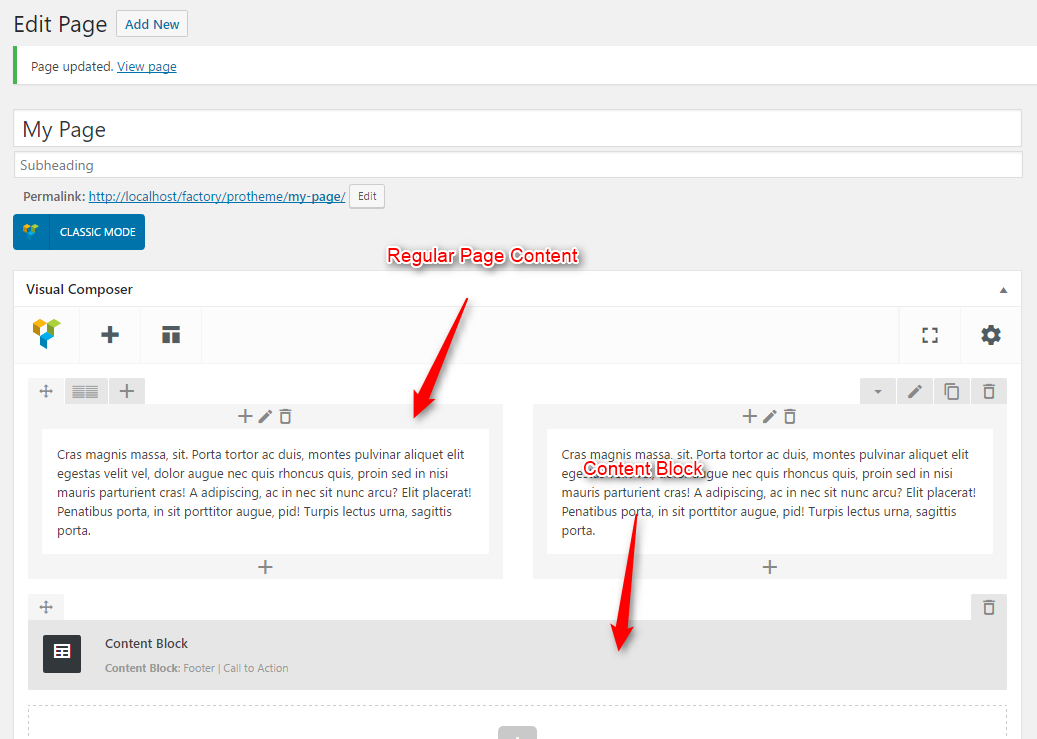
Find the Content Block element in the WPBakery Page Builder elements window and insert it into your page.
Post-Header & Pre-Footer
You can set content blocks as a post-header (just below the header) or pre-footer (just before the footer) area.
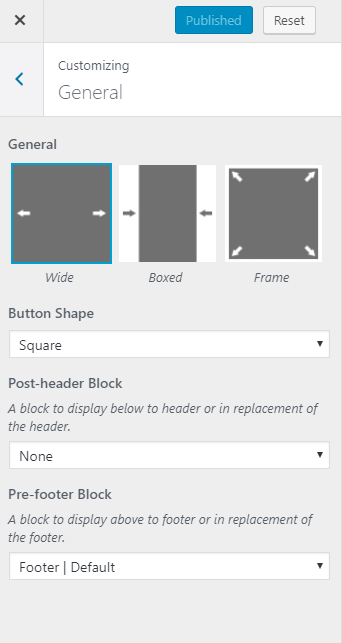
Globally — set header and footer blocks for all pages via Appearance > Customizer > General tab.
Per page — override the global setting for individual pages using the page options below your text editor.
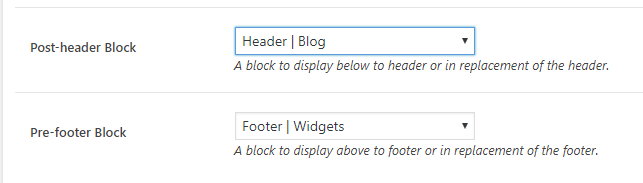
Content block settings include an inheritance system. For example, if you set a header block on your blog page, all blog-related pages will inherit that setting.
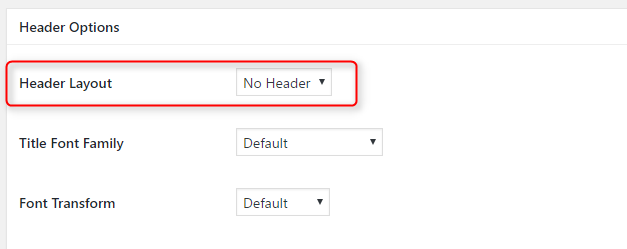
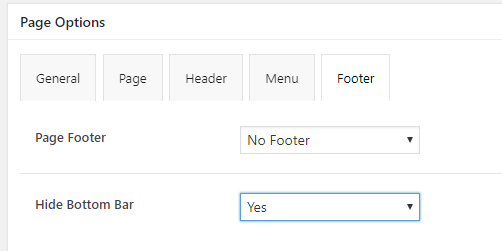
Replace the Default Header & Footer
You can use content blocks to fully replace the default header or footer. Simply hide the default header or footer via the page options, and assign a content block in its place. This lets you create a custom footer for specific pages while keeping the built-in footer everywhere else.