
Appearance
System Status
Our most recent themes include a system status table directly in your WordPress Dashboard under Appearance > About the Theme.
To access the system status table, you need to have plugin installation and activation capabilities enabled. More info about WordPress roles and capabilities.
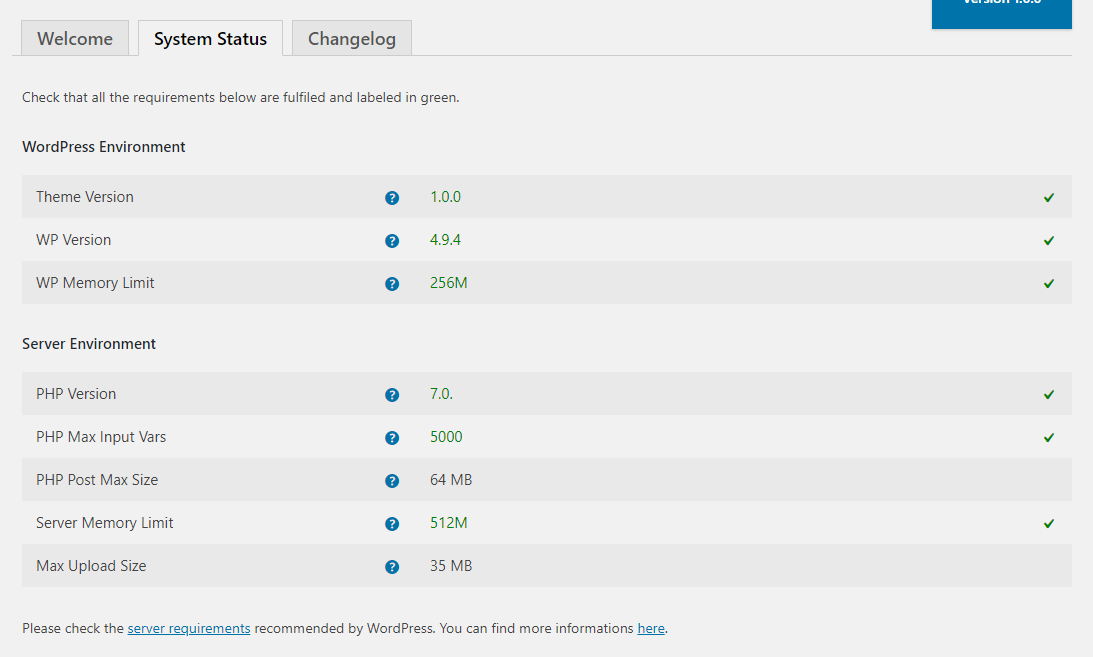
If you see red errors, you are likely not in compliance with the Server Requirements for a modern WordPress installation. Most of our themes come packed with a page builder and a full options set that require decent server performance to run smoothly. Each red error includes a link to a tutorial showing how to fix the value.
You can always contact your host to have limits adjusted. Note that many hosts keep limits low to conserve resources — but you are paying for those resources and should expect your money's worth. These values are typically lower on low budget hosts.
The most important values to check:
- WP Memory Limit — the maximum amount of RAM your site can use at one time. Reaching the limit causes a fatal error.
- Max Input Vars — the maximum number of variables your server can use. Low values can cause lost data in Theme Options, disappearing widgets, etc.
System Status Check with WordPress phpinfo() Plugin
If your theme does not include the system status table, you can use the WordPress phpinfo() plugin instead.
Once installed, go to Settings > phpinfo() in your admin panel.
The first column shows your installation value, the second shows your host's limit. The latter is often lower on cheaper hosting packages. Contact your host to have values adjusted if necessary.