
Appearance
Custom Fonts
To use custom fonts in your theme you will need to use the child theme included in your theme package. Your fonts must be in web format (ttf, woff, woff2, etc.) with a CSS snippet to load them.
To make your custom font available in the Customizer and page builder settings, you also need to add a small PHP filter in your child theme's functions.php.
Step by Step Example (Roboto Font)
We will use the Font Squirrel web generator to generate a font package.
1. Copy the font files into an assets/fonts folder inside your child theme.
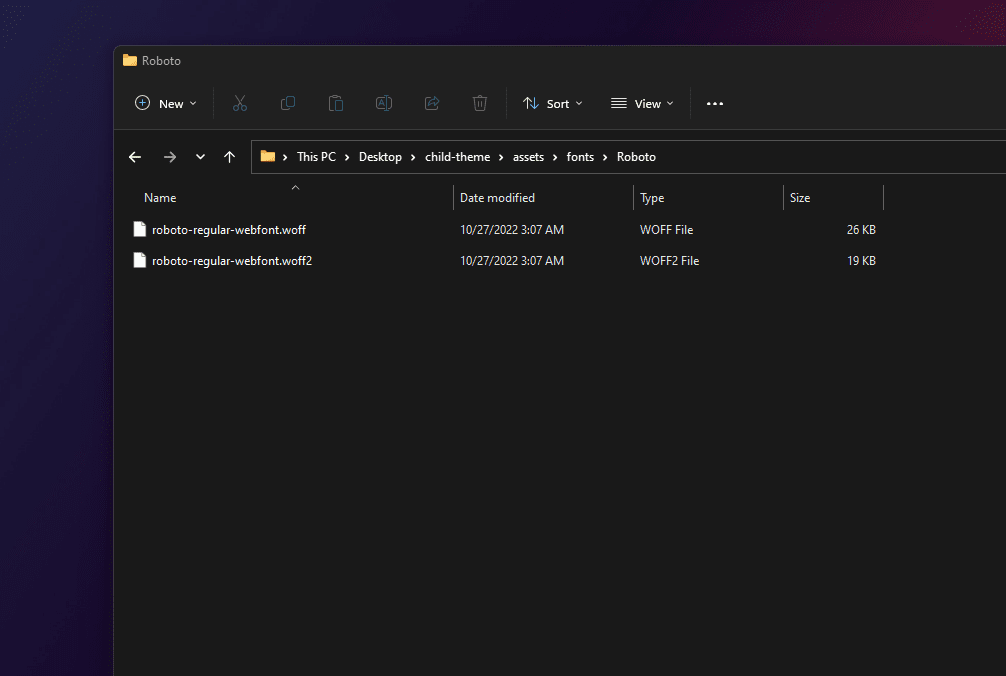
2. Paste the CSS @font-face snippet into your child theme's style.css. Make sure the path to your font files is correct.
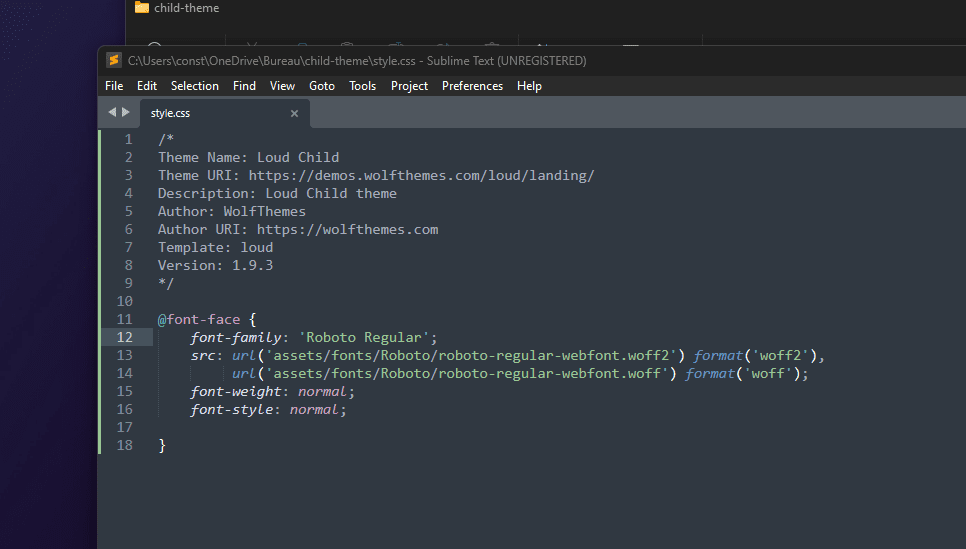
css
@font-face {
    font-family: 'Roboto Regular';
    src: url('assets/fonts/Roboto/roboto-regular-webfont.woff2') format('woff2'),
         url('assets/fonts/Roboto/roboto-regular-webfont.woff') format('woff');
    font-weight: normal;
    font-style: normal;
}
3. Add this PHP filter to your child theme's functions.php to make the font available in theme and page builder options.
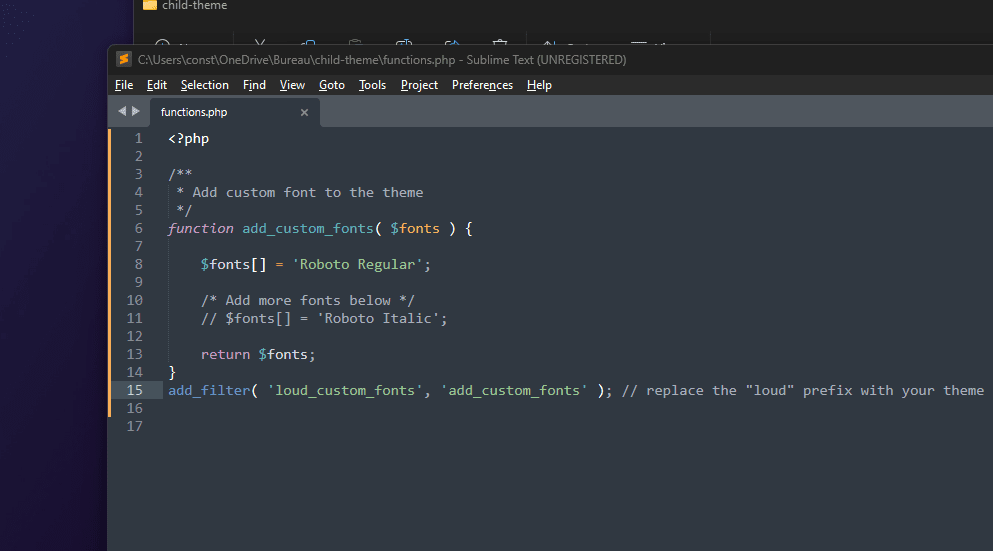
php
/**
 * Add custom font to the theme
 */
function add_custom_fonts( $fonts ) {
    $fonts['Roboto Regular'] = 'Roboto Regular';
    /* Add more fonts below */
    // $fonts['Roboto Italic'] = 'Roboto Italic';
    return $fonts;
}
add_filter( 'themename_mods_fonts', 'add_custom_fonts' ); // replace "themename" with your theme prefix
add_filter( 'wvc_fonts', 'add_custom_fonts' ); // WPBakery Page Builder themes
add_filter( 'wolf_core_fonts', 'add_custom_fonts' ); // Elementor themes
You can download a child theme example with this already set up.